
Text to image AI: how to write prompts
A good text to image AI prompt names the subject, setting, style, and lighting. On mobile you type in a small box, so short clear phrases beat long paragraphs. These patterns work in UltraPix and most AI image generators. For copy-ready examples, see our text-to-image cheatsheet and image to image AI prompt guide.
Basic prompt structure
Start with the subject: “a ceramic mug on a wooden table.” Add style: “product photo, soft studio light.” Add constraints: “white background, 4:5 aspect.”
Put the most important words first. Models weight early tokens heavily.
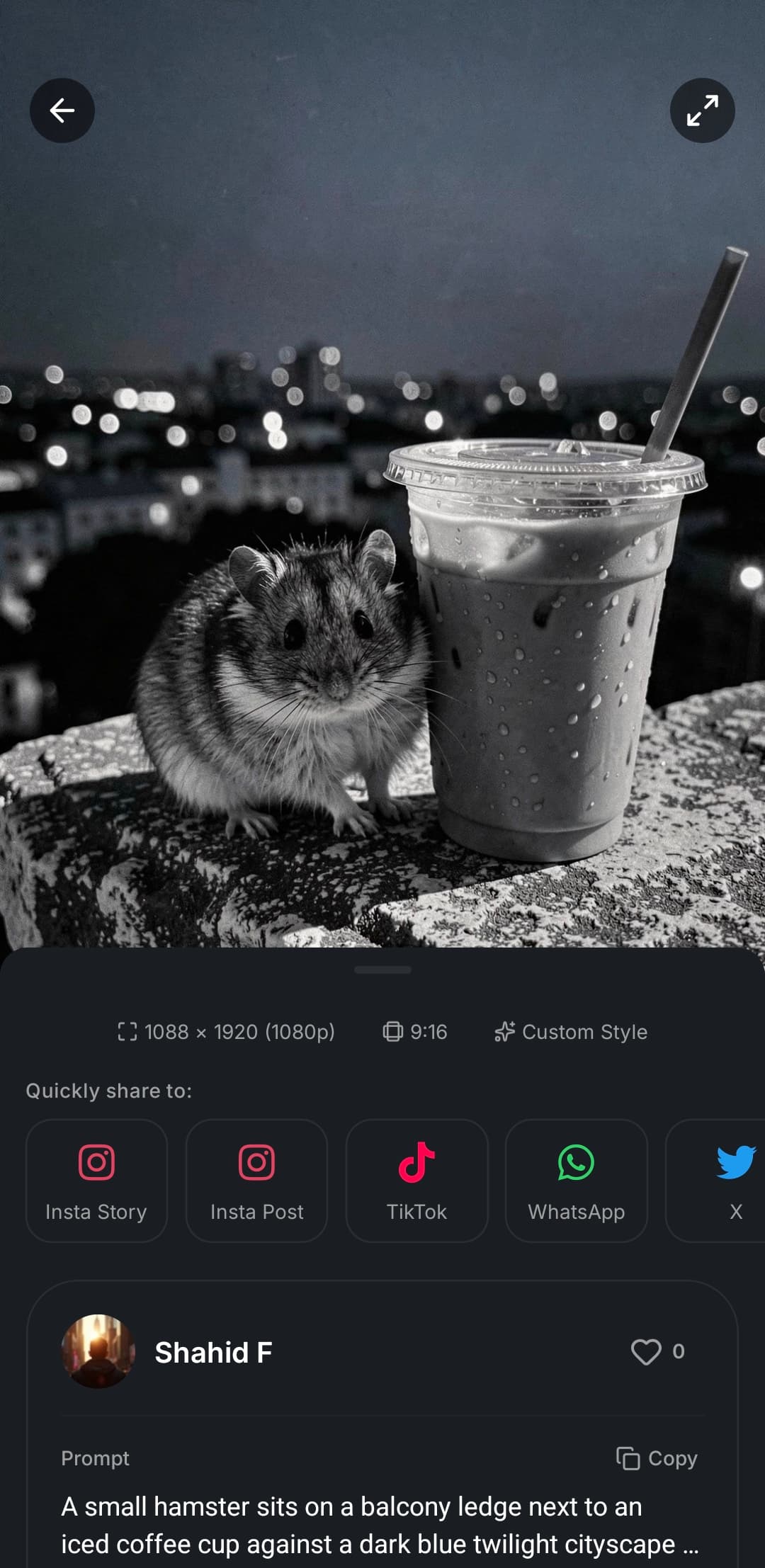
Style and mood
Name a medium if you care: “oil painting,” “flat vector,” “35mm film photo.”
For portraits, specify age range, expression, and wardrobe instead of vague words like “beautiful.”
Ready to try it?
Get it on Android and start creating in seconds.

What to avoid
Do not stack ten adjectives. Pick three that matter.
Negative prompts (what to exclude) help on some models. In UltraPix, check if the screen exposes negative text for your selected model.
Iterate on the phone
Save prompts that worked. Change one variable per run: lighting, then lens, then color palette.
Use image-to-image when you have a reference photo instead of describing every detail in text.
No reference photo yet? Start from text-to-image templates. Already have the shot? Switch to image-to-image patterns and describe only the delta.
Ready to try it?
Get it on Android and start creating in seconds.
Lighting vocabulary
Name direction and quality: “soft window light from camera left,” “hard noon sun, short shadows,” “overcast open shade.”
Color temperature matters for product shots: “5500K neutral studio” vs “tungsten practicals, warm amber spill.”
For portraits, specify catchlights (“large softbox reflection in eyes”) to avoid flat mugshot lighting.
Aspect ratio and composition
State crop intent: “4:5 Instagram portrait,” “16:9 YouTube thumbnail, subject right third,” “1:1 marketplace main image.”
Negative space instructions help ads: “empty top third for headline,” “subject lower half, sky gradient above.”
Model-specific guides such as Nano Banana Pro and Nano Banana Pro prompting show how reasoning models interpret layout instructions.
Ready to try it?
Get it on Android and start creating in seconds.
Product and ecommerce prompts
Lead with material and finish: “matte black aluminum bottle, brushed cap, condensation beads.”
Name marketplace rules when relevant: “Amazon main image, pure white seamless, product fills 85% frame.”
See AI product photography and product prompt examples for catalog-ready language.
Negative prompts and references
When the UI exposes negative text, use it for recurring failures, extra fingers, watermark patterns, cluttered backgrounds, not for long wish lists.
Reference uploads beat adjectives for brand colors and silhouette. One photo of the product angle you need saves fifty words of description.
For edits, start prompts with lock phrases: “keep face and pose, change only jacket color to navy.”
If results drift, reduce prompt length and add one reference image instead of five more adjectives.
Ready to try it?
Get it on Android and start creating in seconds.
Prompt habit checklist
Subject first, style second, lighting third, aspect last.
One change per iteration when learning a new model.
Quote on-image text verbatim.
Save winners in the app history, not only in chat threads.
Use img2img when camera angle is right but mood is wrong.
Read one model-focused blog monthly for fresh vocabulary on Android.
Related tools
More AI tools in UltraPix on Android, browse as a guest, sign in to generate and save.
FAQ
- How long can prompts be in UltraPix?
- Prompts can be up to 2000 characters. Shorter focused prompts often work better than max-length blocks.
- Can I reuse prompts?
- Copy successful prompts from your generation history in the app and tweak one line for the next variation.
- Why do my prompts work on desktop but look different on mobile?
- The same model should behave similarly, but mobile apps may default to different aspect ratios or quality tiers. Match those settings and keep prompts under the character limit shown in the app. Our blog examples include mobile-friendly line breaks you can paste verbatim.
Get UltraPix
Download the app on Google Play to try text-to-image, background removal, and upscale on your phone.